Shopify Image Resizer: Sizes, Limits and the Tools Worth Using
What Shopify allows for product images, how it resizes them for you, and how to resize, crop and compress a whole catalog with free tools or an app.
Most stores do not need a "resizer" so much as one clear rule: pick one aspect ratio, upload good originals, and let Shopify's image network serve the right size to each visitor. This guide shows what Shopify allows today, how it resizes images for you, and which free tools and apps help when your catalog is a mess. Everything here was checked against Shopify's own pages and the tools' own pages.
What Shopify allows for images
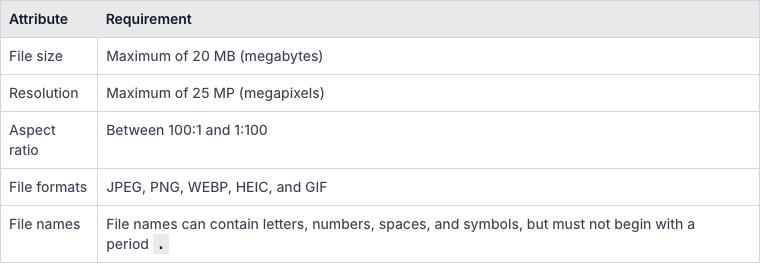
These are the limits on Shopify's Files page, which also covers product media. They are the numbers to check before you export anything.
| Limit | What Shopify says |
|---|---|
| File size | Maximum 20 MB per image |
| Resolution | Maximum 25 megapixels, which is 5000 x 5000 px for a square image |
| Aspect ratio | Between 100:1 and 1:100 |
| File types on the Files page | JPEG, PNG, WEBP, HEIC and GIF |
| Media per product | Up to 250 images, 3D models or videos |
| Alt text | Up to 512 characters, 125 or fewer recommended |
| File names | Cannot start with a period |
Three details that catch people out:
- A small file can still be "too large". The limit is also on megapixels. Shopify's own example: a 5000 x 5000 px image is 25 megapixels, so cut it to 4000 x 4000 px (16 megapixels) if the upload fails.
- Some file name endings are reserved. Shopify warns that names ending in
pico,icon,thumb,testing,small,compact,medium,largeorgrandecan be read as resize requests by its image network, and it then adds a suffix to your name. It also suggests avoiding an underscore right before dimensions, so usebottle-5x4.jpegrather thanbottle_5x4.jpeg. - Shopify's pages do not fully agree with each other. The product media page says PNG is the best type for most product images, followed by JPEG. The page on uploading theme images says to use JPEG for product images and PNG for logos and flat graphics. One older passage mentions a 20 megapixel limit, while the Files page says 25. Treat 25 as the ceiling and stay well under it. Our rule: photos as JPEG, graphics and anything with transparency as PNG.
For the size to aim for, Shopify says a square product image of 2048 x 2048 px usually displays best. For non-square images, we use 2048 px on the long edge as a sensible default. Go higher only if shoppers genuinely need to zoom in on detail.
How Shopify resizes images for you
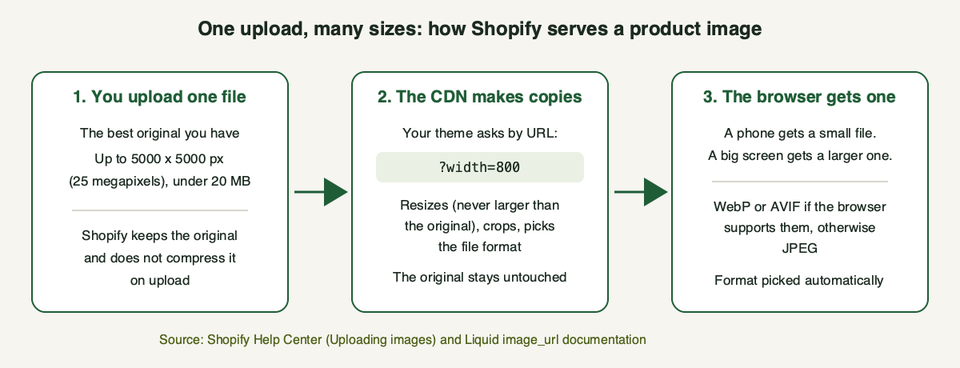
Shopify does not store a pile of pre-made sizes that you manage. It keeps your original and makes copies on request, through its image network (the CDN).
What the documentation says:
- Shopify's help page on uploading images says images do not need to be compressed by hand before upload, and that you should upload the best quality you have.
- When a shopper loads a page, the CDN can compress the image and pick a format. If the browser supports WebP or AVIF, it gets those. Otherwise it gets a JPEG. Animated GIFs are converted to animated WebP.
- Themes ask for a size with the
image_urlfilter. You give it a width or a height, up to a maximum of 5760 px. An image is never enlarged past its original size, so a small upload stays small whatever the theme asks for. - If the requested shape differs from the original,
image_urlcan crop (top, center, bottom, left, right, or a set region) or pad the image with a color you choose. The default is a center crop. - Embedded color profiles are removed when images are shown on your store. If colors look different from your editing screen, export in sRGB before you upload.
- Because the original is kept, Shopify's media editor can revert an edited image. That button only works on product media edited after January 2024.
This is why a 4000 px upload does not make a phone download 4000 px. It also explains the most common speed problems: images placed in the theme without these tools, such as hard-coded links, CSS backgrounds, or images injected by apps, skip the resizing. Shopify's developer guidance is to use image_tag with srcset and sizes so the browser picks the right file:
{{ product.featured_image
  | image_url: width: 1000
  | image_tag:
    widths: '400, 600, 800, 1000',
    sizes: '(min-width: 1000px) 900px, calc(100vw - 2rem)'
}}
That example comes from Shopify's docs. Change the widths and sizes to match your own layout, and do not lazy load the main image at the top of the page. Shopify's guidance is never to lazy load the largest above-the-fold image. If your theme does not do any of this, that is theme work (our theme performance guide covers it), and it is where we would start before touching a single photo.
Get the shape right first
Size is easy. Shape is what makes a collection page look cheap.
When product cards sit side by side, mixed shapes make rows ragged. Shopify's own advice is to use one consistent aspect ratio for your main images, and it notes that themes can also use the CDN to request consistent sizing for images that were saved in different ratios. Many themes also let you choose the card shape. In Dawn, for example, the collection grid has an Image ratio setting with three options: Adapt to image, Portrait and Square. In Dawn's source code the portrait option is 4:5. Our Dawn customization guide covers where those settings live.
Pick the shape by your products, not by habit:
- Square (1:1) suits bottles, jars, boxes and anything roughly as tall as it is wide.
- Portrait (4:5) suits clothing and tall items.
- Keep one ratio for the whole catalog. A catalog with three ratios will always look uneven.
There are three ways to put a photo into a frame of a different shape, and only two are good.
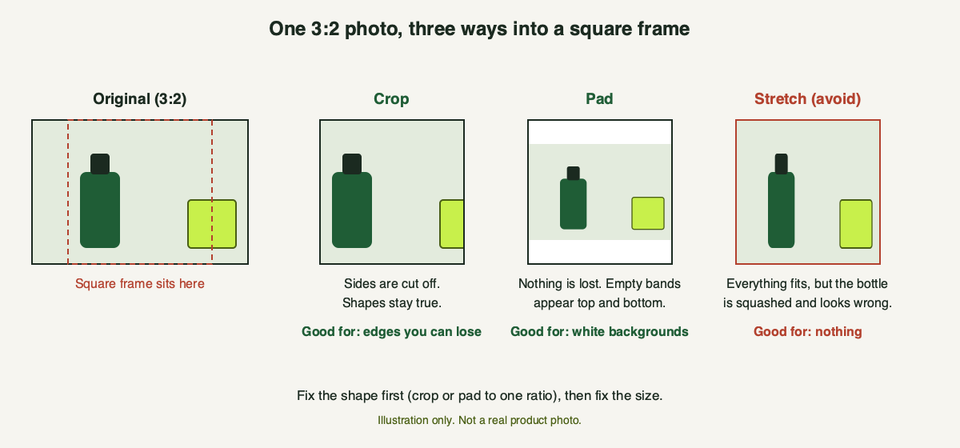
Shopify's media editor says the same thing in plain words: if you try to change the aspect ratio by resizing, the image can be distorted, so crop to the ratio you want instead. In its resize tool, leave Lock aspect ratio on.
Two more tools help when a theme crops your image for you:
- Focal point. In the admin you can mark the most important part of an image so themes keep it in frame when they crop. Shopify lists the versions of its free themes that support it, and third-party themes vary, so check your theme's documentation. One image can have one focal point.
- No text inside banners. Shopify advises against baking text into slideshow or banner images, because themes move and crop images on different screens. Add the text in the theme editor instead.
Resize inside Shopify
For a few images, you do not need anything else. Open the file from Content, then Files (or from a product's media), click the thumbnail, and use the media editor. The help page lists crop, resize, rotate, draw and background tools. Things worth knowing:
- Cropping offers freeform, original ratio and square options.
- Resizing asks for a new width, with the aspect ratio locked by default.
- Save as new keeps the original file next to the edited copy. Use it when you are unsure.
- It works one file at a time. Shopify's docs describe replacing a file as something you cannot do in bulk, and when you replace a file the name stays the same but the file's link changes. That matters if anything outside your store links to the old file.
You can upload up to 200 files at once on the Files page, but we found no bulk resize tool in Shopify's own documentation. That is the gap the tools below fill.
Free tools outside Shopify
Do the work on your computer, then upload. These four are free to try, and each one does a different job.
Squoosh (squoosh.app) is an open source web app from Google Chrome Labs. Its project page says images are processed in your browser and are not sent to a server. Its code includes a resize step (width and height, with a "stretch" or "contain" fit) and encoders for MozJPEG, WebP, AVIF and OxiPNG. Pick this if you want to see the quality and file size change as you move a slider. Watch out: choosing "stretch" is how you distort a product, so leave it on "contain".
TinyPNG (tinypng.com) compresses and converts images. Its page says free web use is up to 20 images at once with a 5 MB limit each. The page describes the web tool as compression and conversion, and mentions resizing only for its API, so fix the shape and size elsewhere first. Watch out: the 5 MB limit means large originals will not go through.
Bulk Resize Photos (bulkresizephotos.com) says it is free, unlimited, needs no sign-up, and that images stay private with no uploading. Pick this for resizing a folder of images to the same dimensions in one go.
iLoveIMG (iloveimg.com/resize-image) resizes JPG, PNG, SVG or GIF files by pixels or by percentage in bulk. Its options include "Maintain aspect ratio" and "Do not enlarge if smaller", which are the two settings you want on. It works by uploading your files to its servers, so think twice about unreleased products.
None of these four edits your Shopify store directly. You export, process and re-upload, which is fine for a launch batch and tiring for 5,000 products.
Shopify apps for bulk resizing and compression
When a catalog already has mixed shapes and heavy files, an app can do the repetitive part. The listings below are the ones we. We have not installed or tested them, so treat this as a reading of their listings, not a review of how well they work. Prices and plans change, so check each listing.
| App | What its listing says it does | Pick it if | Check first |
|---|---|---|---|
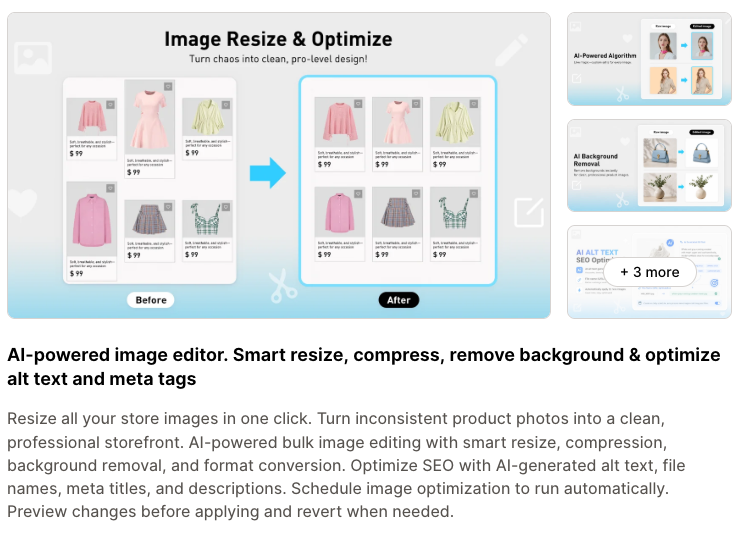
| VF Image Resizer+ | Smart resize and crop, compress, remove backgrounds, convert formats, schedule runs, preview changes and revert | You want resize, compress and some editing in one tool, with a preview | How long backups last on your plan |
| Resize Pro: Bulk Image Resizer | Resize, crop or pad in bulk, compress, rename files and alt text, save every original so you can restore it | You mainly need a consistent size and want easy rollback | It launched in May 2026, so it has a short track record |
| ECM Bulk Image Resizer | Resize and square images (pad with a color or crop), set a maximum width, never stretch small images, compress with presets and a preview, back up originals | Your catalog is full of mixed shapes and you want everything squared | At least one recent reviewer was confused about billing (the developer replied that the app is free), so check your Shopify billing page after install |
| Crush: Speed & Image Optimizer | Compress images, rename files and alt text, work in the background as you go, test different compression methods | The shapes are already fine and the files are just heavy | It is about compression and renaming, not resizing |
| Tiny SEO Speed Image Optimizer (formerly TinyIMG) | A wider SEO and speed app that includes image optimization, resizing image dimensions, lazy loading, alt text and more | You want one app for several SEO and speed jobs | You may get far more than you need if you only want images |
VF Image Resizer+, Resize Pro, Crush and Tiny SEO Speed Image Optimizer each carry the "Built for Shopify" badge on their listings today. ECM Bulk Image Resizer does not show it. That badge is Shopify's mark for apps that meet its performance and design standards, and it is a good sign but not a guarantee that an app suits you.
Before you install any of them:
- Test on a few products first. Run the app on three products and check them on a phone and on the collection page.
- Confirm there is a backup and a restore button. Check how many days backups are kept.
- Keep your own masters. Keep original files in a folder or drive that is not Shopify. An app backup is not an archive.
- Check what changes. Replacing a file changes its link in Shopify, so anything that points at the old file outside your theme might break. Look at your feeds, email images and marketplace listings.
- Do not stack two compressors. One is enough.
- Uninstall what you no longer use. Our guide to theme performance explains why extra apps cost speed.
How to choose
| Your situation | What to do |
|---|---|
| A few images to fix | Shopify's media editor, using crop for shape and resize for size |
| A launch batch you will edit once | Squoosh or Bulk Resize Photos on your computer, then upload |
| Hundreds or thousands of images with mixed shapes | A bulk app with backup and preview, tested on a few products first |
| Shapes are fine but files are heavy | A compression tool or app, plus a check of how your theme loads images |
| Page speed is poor and you are not sure why | Fix the theme's image code first, then touch the files |
A workflow that holds up
This is the order we would follow on a real catalog. It is general advice, not a record of a project we ran.
- Set the rule. Choose one aspect ratio for main product images (square or 4:5) and one long edge, such as 2048 px. Write it down for whoever takes the photos.
- Shoot or export from the original. Always start from the camera original or the master file, not an image that has already been shrunk and re-saved.
- Crop to the ratio first, then resize. Cropping to a shape after shrinking wastes pixels.
- Export as JPEG for photos at high quality, or PNG when you need transparency or flat graphics. Export in sRGB.
- Name files plainly. Use words that describe the product, such as
lavender-soap-bar-front.jpg. Avoid the reserved endings and underscores before sizes. - Upload, then add alt text and a focal point where it helps. Keep alt text short and descriptive.
- Check it in the store. Open a collection page and a product page on a real phone. Look for stretched shapes, cut-off edges and blurry images.
- Test speed. Run a page through the checks in our performance guide, and fix theme issues such as lazy loading the top image.
Common mistakes
- Stretching to fit. Changing width and height separately squashes the product. Crop or pad.
- Mixed ratios in one collection. Rows end up ragged. Pick one shape.
- Uploading tiny images. Shopify never enlarges past the original, so a small file looks soft on large screens.
- Compressing twice, hard. Stacking lossy compression steps can add visible artifacts, and Shopify says its network may compress images too. Keep exports high quality and let Shopify handle delivery.
- Overwriting without a backup. Use Save as new, or an app with restore.
- Text baked into images. It gets cropped on phones, and screen readers cannot read it. Alt text helps shoppers who use screen readers, and our accessibility guide covers more.
If your catalog has thousands of images, mixed ratios from several suppliers, or a theme that ignores Shopify's image tools, this can turn into a real project, and part of it is theme code. If you want a second pair of eyes, talk to us and we will tell you honestly whether you need a developer or just an hour with one of the tools above.
Frequently asked questions
What size should Shopify product images be?
Shopify says a square product image of 2048 x 2048 px usually displays best. Keep every main image in the same aspect ratio, and stay within 20 MB and 25 megapixels per image.
What is the maximum image size on Shopify?
On the Files page the limits are 20 MB, 25 megapixels, and an aspect ratio between 100:1 and 1:100. Some Shopify help pages quote 20 megapixels in one place, so stay comfortably under to be safe.
Does Shopify resize images automatically?
Yes, when the theme asks for a size. Shopify keeps your original and its image network makes resized copies on request, in a format the visitor's browser supports. It will not enlarge an image beyond its original size.
Can I bulk resize images in Shopify without an app?
We found no bulk resize tool in Shopify's documentation. The media editor works on one file at a time. For many images, resize them on your computer with a free tool and re-upload, or use an app that has backups.
Should I compress images before uploading to Shopify?
Shopify says you do not need to, and that you should upload the best quality you have. If your originals are huge or over the limits, resize them first. Light compression at export is fine, but avoid heavy compression before upload.
Should I upload WebP, JPEG or PNG?
Shopify accepts all three, and it serves WebP or AVIF to browsers that support them whatever you upload. Our rule is JPEG for photos, PNG for logos, graphics and transparency.
Why are my product images different sizes on the collection page?
They almost always have different aspect ratios. Crop all main images to one ratio, or set your theme's image ratio option (in Dawn it is Adapt to image, Portrait or Square) so cards line up.
Why does my image look blurry or low quality?
Usually the original is too small, because Shopify cannot enlarge it. Shopify also notes that images can look blurry for a moment on load, as a small version appears before the full one.